When you enter the company homepage, do you remember the picture or text on the top left? Or what about the picture or text on the screen that appears for a moment and then disappears when you turn on the app on your smartphone? I don't remember what it looked like specifically, but I know what you're talking about. You may also remember the shapes and letters inserted at the beginning or end of various advertisements and the small shapes and letters printed on many physical products.
Like this, the pictures and letters that various companies use to distinguish and convey who they are are called logos. Just as everyone has a name and face, every company has a name and logo. No matter what you do, the logo is used everywhere. In this lecture, we will find out what types of logos there are and learn how to handle them with Figma. You'll start by learning how to create a set of logos using ready-made examples. If you have your own logo, you can apply it to create your own set.
will make this time
- Example logo kit*1
- Your Own Logo Kit*1
time to take
- 30 minutes
After this class
- Create logos by type.
- Create your own logo kit.
example file
Download the example file from the Exercise Files tab at the top.
- Symbol: example-symbol.svg
- Wordmark: example-wordmark.svg
- Combination logo: example-combination-logo.svg
Create your own logo
Try making your own logo kit. Since creating a logo with a deep meaning is difficult enough to require a separate class, we will create a logo kit in a way that can be made as lightly and quickly as possible.
*This process is not required. If you already have a logo, or if you don't have enough time to create a logo, you can just focus on creating a logo kit that is used in practice as an example file.
find symbol
Symbols are mainly used in the form of icons. I pick out a few keywords that express me or the organization I belong to well. Based on the selected keyword, search for an icon from the site below and download the SVG.
*The icons are licensed and should not be used commercially.

find a typeface
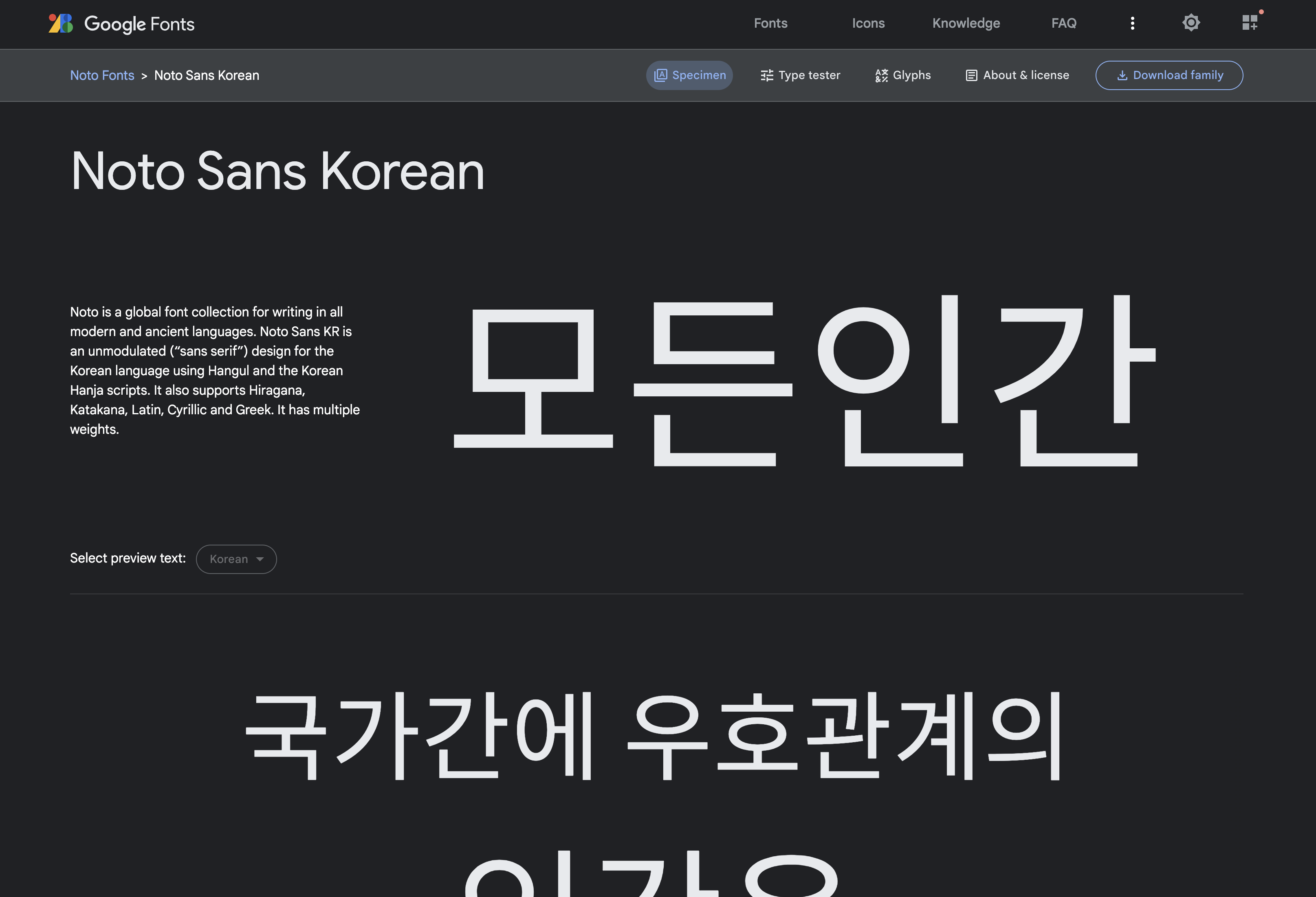
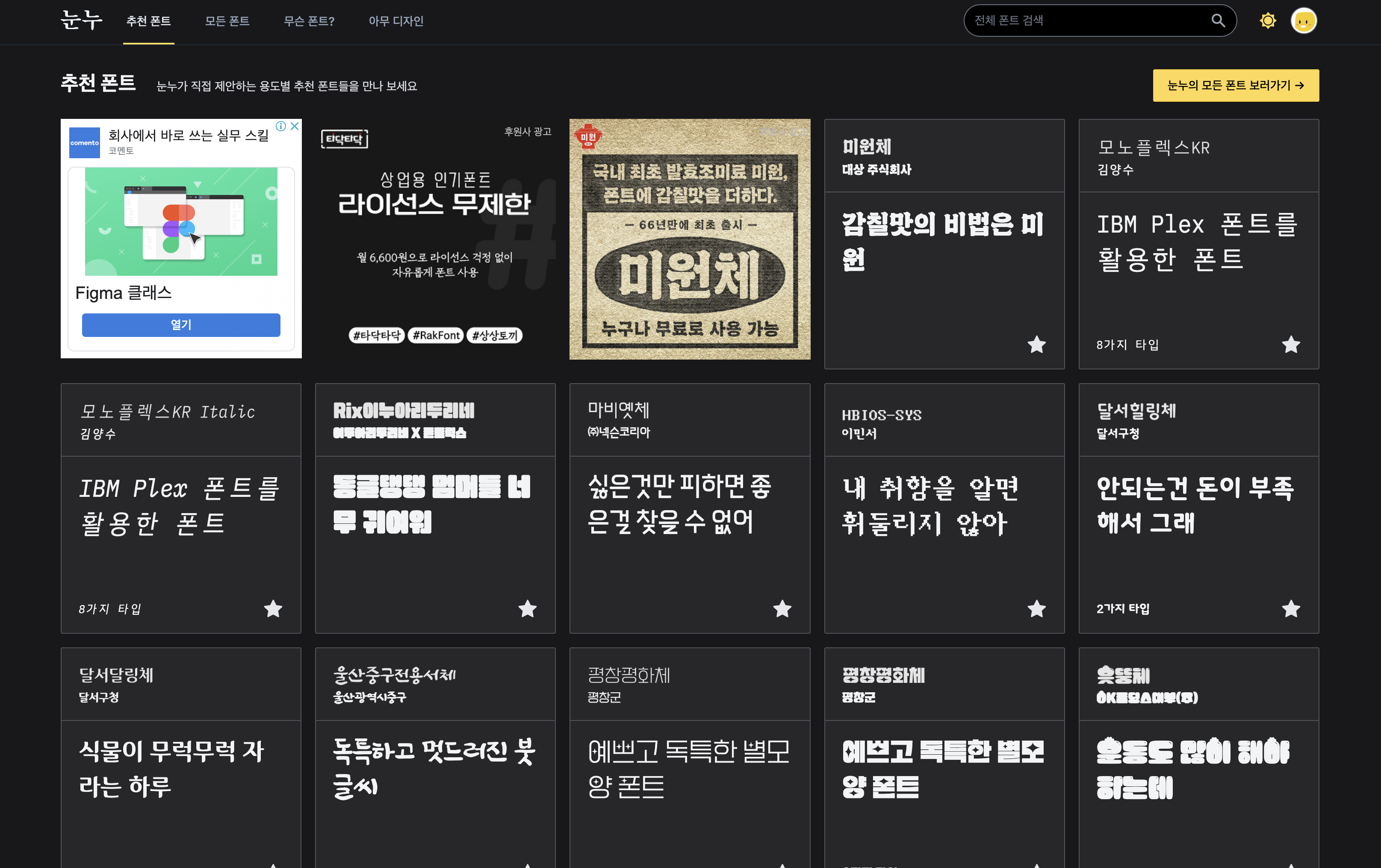
The typefaces that are represented have different personalities from the typefaces that are read. This time, we need a representative typeface, and we need to find one that can reveal our individuality to the fullest. Choose the typeface you want to express your name or organization name in Korean or English.
- Google Fonts: Free fonts from Google
- Font Squirrel: Free English Typeface Platform
- Noonnu: Free Korean Font Platform
Create a logo kit
1. Prepare the file
We learned about what a logo is, the basic element that expresses a brand. Now, let's make your own brand kit that can be used anytime, anywhere. Let's make it using an example SVG source file that doesn't lose quality even when resized. First, download the example below and prepare a file to use in Figma. Turn on Figma and insert the image into the Figma file by dragging and dropping the example file. Organize files directly in Figma using image sources. Put example-symbol.svg, example-wordmark.svg, example-combination-logo.svg into the figma file.
Add image source
- Drag&Drop from desktop.
- Press Shift + Command + K .
- It is inserted as an insert image in the insert figure list.
2. Prepare symbols
Let's start with the simplest set of symbols. The most important thing about a brand element is that it needs to look good in any setting. Whether the background is light or dark, small or large, it is important that it looks uniformly good everywhere. Let's start with simple symbols and organize the files together.
Copy the symbol.
- Select a frame: Click on the name in the upper left corner
- Copy Frame: Command (Ctrl) + C
- Paste Frames: Command (Ctrl) + V
- Repeat copy+paste: Command(Ctrl) + D (= function to repeat previous action)
Sort them by size and name them. As for the size, use 1024, which is generally large, as the original and reduce it to the desired size. Resizing images can also be an extra task, so it's convenient to pre-divide by size. Usually, if the size is about 1024, 512, 96, 64, 40, or 24, you can use it in any situation. If the size is different, write -[size] at the end of the name to make it easier to handle the file later.
- You can rename it by pressing command r.
Now create a symbol with a different color. Generally, it is divided into a black logo used when the background is bright and a white logo used when the background is dark. You can easily change the color using the Selection Color at the bottom right.
3. Preparing the wordmark
Next, let's create a wordmark set. The word mark should also be readable on a small screen without being awkward on a large screen. It is also expressed unreadable for individuality including blanks.
Now create a symbol with a different color. Generally, it is divided into a black logo used when the background is bright and a white logo used when the background is dark. You can easily change the color using the Selection Color at the bottom right.
4. Preparing the Combination Logo
Let's combine a symbol and a wordmark. Unless it is quite famous, it is difficult to know what brand it is just by looking at the symbol. A word mark is legible, but the shape is not easy to remember. In this case, a combination logo is a combination of a symbol and a word mark. It can be combined vertically or horizontally.
5. Organize your brand kit
With a symbol, word mark, or combination mark, it is possible to respond to almost any situation. Now, since you will be using this figma file over and over again, it is good to take this opportunity to organize it neatly. It is up to the individual how to organize them, but it is easier to modify them later if they are collected according to their characteristics.
I group them by Category > Color > Size. The name is also named as Category-Color-Size according to this classification. It is better to write the name in detail so that you can immediately know what kind of logo it is just by looking at the file.
Now you need to export the file you are done with. SVG is great for graphics and development tools, but it's not used much in general situations. I usually use an appropriately sized PNG with a transparent background. To do this, uncheck the background to not include it when exporting to PNG.